Your GA4 Measurement ID starts with G- followed by 10 characters. Find it in Admin > Data Streams > your web stream, shown at the top right of the stream details. The whole thing takes about 30 seconds.
Your Measurement ID is the code that connects your website to Google Analytics. It starts with G- followed by 10 characters, and almost every tool that asks you to “connect Google Analytics” (Tag Manager, your CMS, a plugin) is really asking for this.
Here’s where to find it. The whole thing takes about 30 seconds.
You’ll need access to the Google Analytics account for your site. If someone else set up analytics for you, you may need them to add you, or to send you the ID directly.
Find it in three steps
Open Admin
In Google Analytics, click Admin, the gear icon in the bottom-left corner. This opens your account and property settings.
Open Data streams
Under Data collection and modification, click Data streams. You’ll see a list of your streams. For a website that’s usually just one.
Admin Data collection and modification Data streamsOpen your web stream
Click the stream. A panel slides in from the right with the stream details. Your Measurement ID is at the top, on the far right.
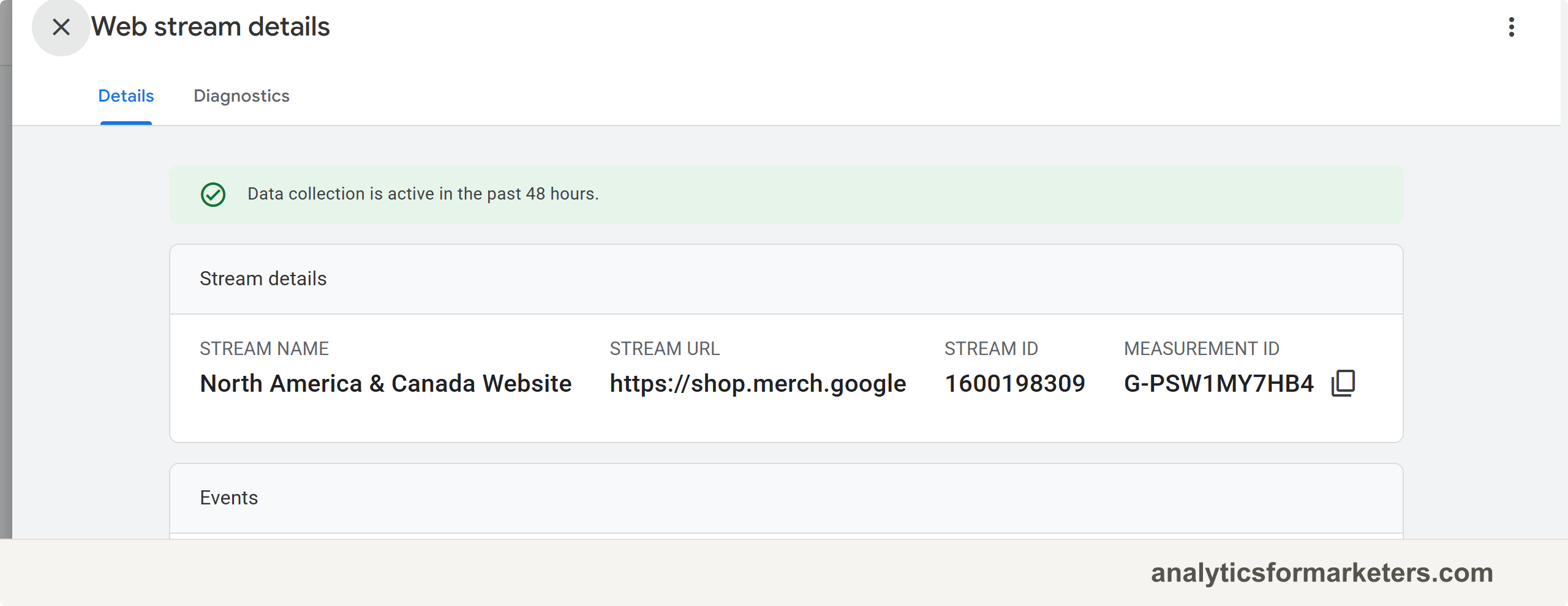
It looks like this:
G-AB12CD34EFa value that starts with G- followed by 10 characters. That’s your Measurement ID. Copy it and keep it handy.
If your ID starts with UA-, you’re looking at an old Universal Analytics property, which stopped collecting data in July 2023. You’ll need a GA4 property instead. Look for the one whose ID starts with G-.
What the Measurement ID is for
Any time a tool asks you to “connect Google Analytics” or “enter your GA4 ID,” this is the value it wants. You’ll use it when you:
- Install analytics through Google Tag Manager
- Add analytics to a CMS like WordPress, Shopify, or Webflow
- Set up a plugin or theme that reports to GA4
One ID, reused everywhere. Once you’ve found it, the rest of setup is mostly pasting it where it’s asked for.
Haven’t installed GA4 yet? Follow the installation guide. New to GA4 in general? Start with the GA4 beginner’s guide.