Google Analytics 4 (GA4) is Google's free web analytics platform. It uses an event-based model to record what visitors do on your site (which pages they view, what they click, and what they buy) so you can see where your traffic comes from and whether it turns into results. No coding is required to get started.
By the end of this guide, you’ll understand what Google Analytics 4 is, why Google built it, and how it actually helps you as a marketer. No data science degree required.
What is Google Analytics 4?
Google Analytics 4 (GA4) is Google’s current analytics platform. It tracks what people do on your website: which pages they visit, how they got there, whether they clicked a button, filled out a form, or bought something.
If you’ve heard of “Universal Analytics,” that was the previous version. Google replaced it with GA4 in July 2023. If you’re moving over from it, here’s how the two differ.
Here’s what that means for you: If you’re setting up analytics for the first time, GA4 is the only option. And if you used the old version before, GA4 works differently in some important ways (we’ll cover those).
Why should marketers care about GA4?
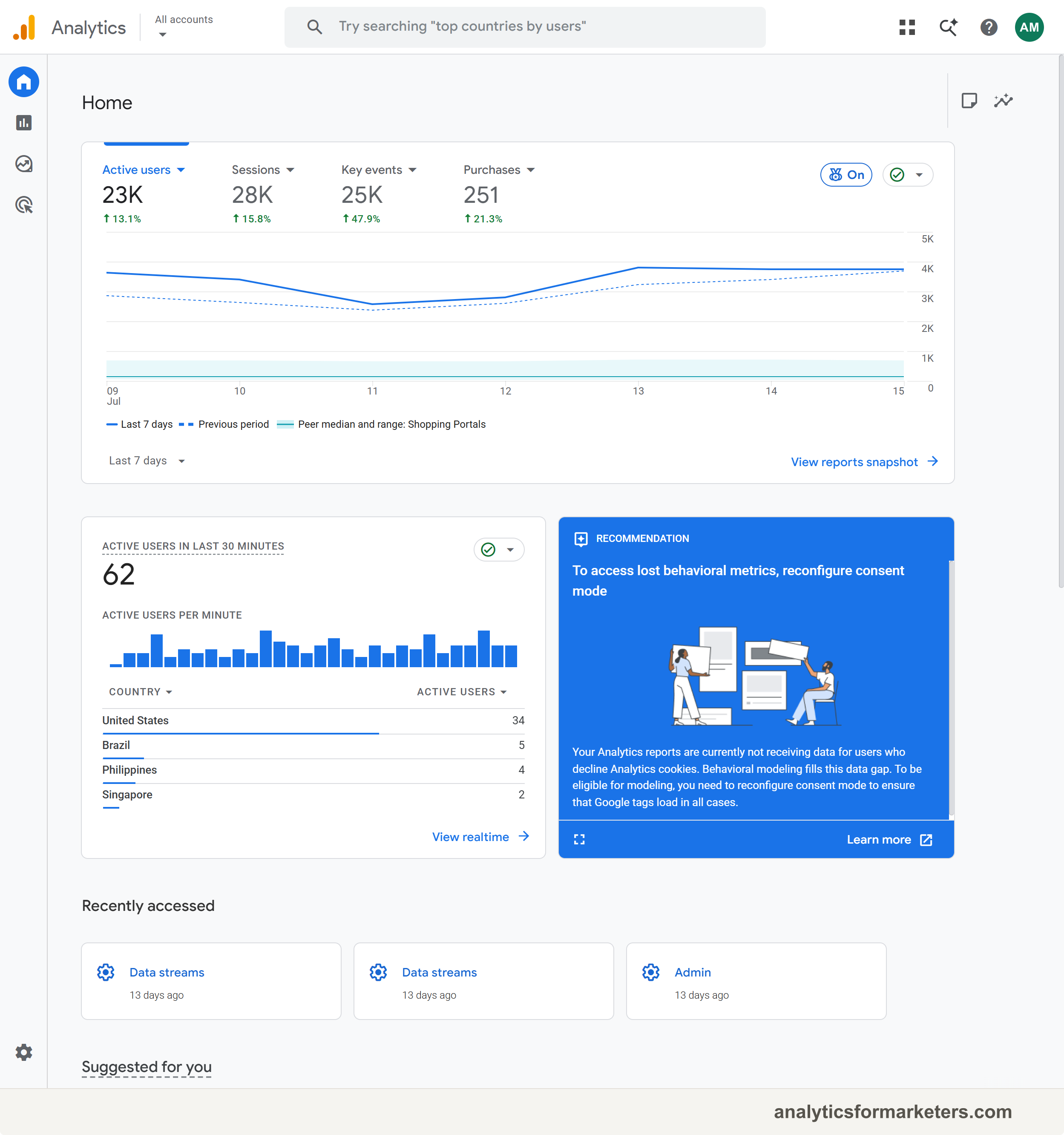
You run campaigns. You publish content. You spend money on ads. GA4 tells you whether any of it is working.
Here’s what you can answer with GA4:
- Where is my traffic coming from? Organic search, paid ads, social media, email, all broken down clearly.
- Which pages do people actually read? Not which pages you think are popular, but which ones actually get traffic and keep people’s attention.
- Are people doing what I want them to do? Filling out forms, clicking buttons, buying products. GA4 tracks all of these as “events.”
- Is my ad spend paying off? Connect GA4 to Google Ads and see which campaigns drive real results, not vanity clicks.
What makes GA4 different
If you used the old Google Analytics, a few things changed:
Everything is an “event” now
In the old model, the “pageview” was special. It was the main thing being tracked. To track a button click or a form submission, you had to set up separate “event” tracking.
In GA4, everything is an event. A pageview is an event. A scroll is an event. A click is an event. A purchase is an event.
Here’s what that means for you: GA4 automatically tracks more things out of the box: page views, scrolls, outbound link clicks, site search, file downloads, and video engagement. You don’t have to set most of these up manually.
Sessions work differently
The old version revolved around “sessions,” a group of interactions within a time window. GA4 still has sessions, but it focuses more on individual events and “engagement.”
You’ll see metrics like engaged sessions (sessions where someone spent at least 10 seconds, viewed 2+ pages, or triggered a key event) and engagement rate (the percentage of sessions that were engaged). These replaced the old “bounce rate” concept. Here’s how bounce rate and engagement rate compare.
Reports look different
The old GA had dozens of pre-built reports in a left sidebar. GA4 has fewer default reports, but they’re organized differently:
- Reports: Your standard traffic and engagement data
- Explore: Custom reports you build yourself (this is where the power is)
- Advertising: Campaign performance and attribution
The interface takes some getting used to. But once you learn where things are, the data is better.
What GA4 tracks automatically
When you install GA4, it starts tracking these things without any extra setup (through a feature called Enhanced Measurement):
- Page views: Every page someone visits
- Scrolls: When someone scrolls to 90% of a page
- Outbound clicks: When someone clicks a link that leaves your site
- Site search: When someone uses your site’s search bar
- Video engagement: Play, progress, and completion of embedded YouTube videos
- File downloads: When someone downloads a PDF, spreadsheet, etc.
That’s a solid starting point for most marketers. You can track more specific things (like button clicks or form submissions) by setting up custom events, but the automatic tracking covers the basics.
The key terms you’ll see in GA4
Here’s a quick reference for the terms GA4 uses. Bookmark this section. You’ll come back to it.
| Term | What it means |
|---|---|
| Event | Any interaction. Page view, click, scroll, purchase, they’re all events. |
| Key event | An event you’ve marked as important, like a form submission, a purchase, or a sign-up. GA4 renamed this from “conversion” in 2024. |
| User | A person visiting your site. GA4 tracks “Total users” and “Active users.” |
| Session | A group of interactions in a single visit. Starts when someone arrives, ends after 30 min of inactivity. |
| Engaged session | A session where someone spent 10+ seconds, saw 2+ pages, or completed a key event. |
| Engagement rate | Percentage of sessions that were engaged. Higher is better. |
| Source / Medium | Where traffic came from. “google / organic” means Google search. “facebook / cpc” means a paid Facebook ad. |
| Measurement ID | Your unique GA4 tracking code. Starts with “G-” followed by 10 characters. You’ll need this during setup (how to find yours). |
Getting started with GA4
Here’s the path from zero to collecting data:
Step 1: Create a Google Analytics account
Go to analytics.google.com and sign in with your Google account. If you don’t have a GA account yet, you’ll be walked through creating one.
You’ll set up an Account (your company), a Property (your website), and a Data Stream (the connection between GA4 and your site).
Step 2: Get your Measurement ID
Once your property is created, go to Admin (gear icon, bottom left) > Data Streams > click your web stream.
Your Measurement ID is at the top right. It looks like G-AB12CD34EF.
Copy this. You’ll need it for the next step.
Step 3: Install the tracking code on your site
You have two options:
Option A: Paste the code directly. GA4 gives you a snippet of code (called the “gtag”) to paste into the <head> section of every page on your site. If you’re on WordPress, Shopify, or Squarespace, there are built-in settings or plugins to do this without touching code. We have platform-specific walkthroughs for installing GA4 on WordPress, installing GA4 on Shopify, installing GA4 on Squarespace, and installing GA4 on Wix.
Option B: Use Google Tag Manager. If you want more control over what gets tracked (and you will, eventually), install Google Tag Manager first, then add GA4 through Tag Manager. This is the approach most marketing teams use.
Step 4: Verify it’s working
After installing, go back to GA4 and click Reports > Realtime. Open your website in another tab and click around. You should see your visit show up in the Realtime report within a few seconds.
You should see: A “1” under “Users in last 30 minutes” and your page views listed below.
If you see that, GA4 is installed and collecting data.
What to do first after setup
GA4 is collecting data. Now what?
Wait 24 to 48 hours. GA4 needs time to collect enough data before the standard reports are useful. Realtime works immediately, but the other reports need at least a day.
Check your Enhanced Measurement settings. Go to Admin > Data Streams > your stream > Enhanced Measurement. Make sure the toggles are on for page views, scrolls, outbound clicks, site search, and file downloads.
Set your data retention to 14 months. By default GA4 only keeps detailed data for 2 months. Go to Admin > Data collection and modification > Data retention and change it to 14 months. Do this now. You can’t get the data back later.
Mark your important actions as key events. If you have a “thank you” page after a form submission, or a purchase confirmation, mark those events as key events. Go to Admin > Data display > Events, find the event, and click the star icon. (GA4 renamed conversions to key events in 2024.) For the full walkthrough, including counting methods, see our key events guide.
Where to go from here
You have GA4 installed. It’s tracking your basic data. Your next steps depend on what you need:
-
Want to see your data in a dashboard? The GA4 default reports are a good start. Look at Reports > Acquisition to see where traffic comes from, and Reports > Engagement > Pages and screens to see your top pages. When you’re ready, learn how to build a GA4 dashboard.
-
Want to track specific actions? Like button clicks or form submissions, you’ll need to set up custom events.
-
Want more control over your tracking? Google Tag Manager lets you manage GA4 and other tracking codes from one place, without editing your website code every time. Start with our Google Tag Manager guide.
-
Running campaigns? Tag your links with UTM parameters so GA4 files every visit under the right campaign, source, and medium.
This guide gives you the foundation. The tutorials on this site walk through each of these next steps, one at a time.