Work through it in order: standard reports take 24 to 48 hours, so a fresh install showing nothing is usually just early. Check Reports > Realtime while visiting your own site in a private browser window with no ad blocker; if Realtime sees you, tracking works and you only need patience. If Realtime is empty, verify the tag is actually on the page (view source and search for your G- ID, or use Tag Assistant), confirm the Measurement ID matches the property you're looking at, then rule out consent banners, internal traffic filters, and a tag installed on the wrong site.
An empty GA4 property has a short list of possible causes, and they’re almost all quick to check. This guide walks the diagnosis in order, from “nothing is actually wrong” (the most common case) to the config problems that quietly eat your data.
Work through it top to bottom; each step tells you whether to stop or keep going.
Step 1: Rule out the waiting period
GA4 has two speeds:
- Realtime reports: show visits within a few minutes, often faster.
- Standard reports: take 24 to 48 hours to start populating after a new install, and each day’s data can keep updating for a while after.
If you installed GA4 today and the main reports are empty, that’s expected. The only meaningful test on day one is Realtime, which is exactly step 2.
Then it isn’t the waiting period. Skip ahead to step 3 and verify the tag is actually on your site, because a tag that was never installed correctly produces exactly this: a permanently empty property.
Step 2: Run the Realtime test
- Open your website in a private/incognito window with no ad blocker (extensions are usually disabled in private windows by default; confirm yours are).
- Click through two or three pages.
- In GA4, go to Reports > Realtime.
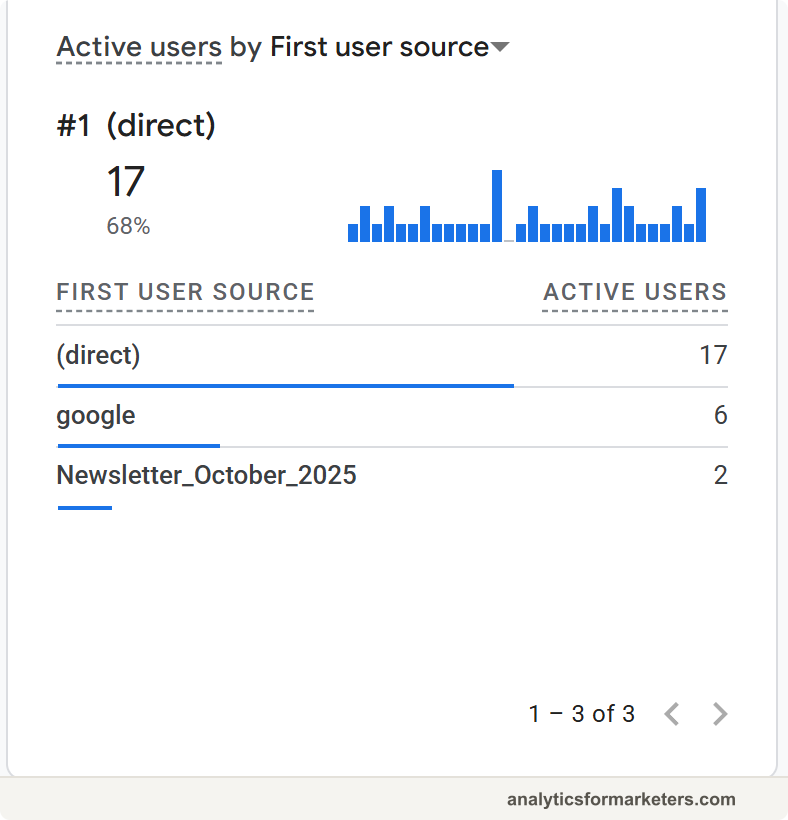
If Realtime shows you: tracking works. An empty standard report is just the 24-to-48-hour lag; come back tomorrow. If data still hasn’t appeared in standard reports after a couple of days of confirmed Realtime activity, check the date range selector in the top corner of your reports; it’s a surprisingly common culprit.
If Realtime is empty: the tag isn’t reaching this property from your browser. Keep going.
Step 3: Verify the tag is actually on the page
Plenty of “GA4 broken” cases are really “GA4 never installed.” Two ways to check:
View the page source. On your live site, right-click and choose View Page Source, then search (Ctrl+F) for:
- your Measurement ID (the
G-code), or googletagmanager.com(which covers both gtag installs and GTM installs)
If neither appears, the tag isn’t on this page. Reinstall using the guide for your platform: WordPress, Shopify, Squarespace, Wix, or the general install guide.
Use Tag Assistant. Go to tagassistant.google.com, click Add domain, and enter your site’s URL. Tag Assistant opens your site and reports which Google tags it finds. This also catches the subtler version of the problem: the tag exists but carries a different ID than you expect.
Check which site the tag is on. A tag installed on the staging or development copy of your site, while the live domain has none, produces an empty property with everything “correctly installed.” Confirm you’re viewing the source of the live URL your visitors actually use.
Step 4: Confirm you’re looking at the right property
This one is embarrassing exactly once. The Measurement ID on your website must match the property you’re staring at in GA4:
- In GA4, check the property name in the top bar, then go to Admin > Data collection and modification > Data streams and open your web stream. Note the Measurement ID.
- Compare it against the ID actually in your page source (from step 3).
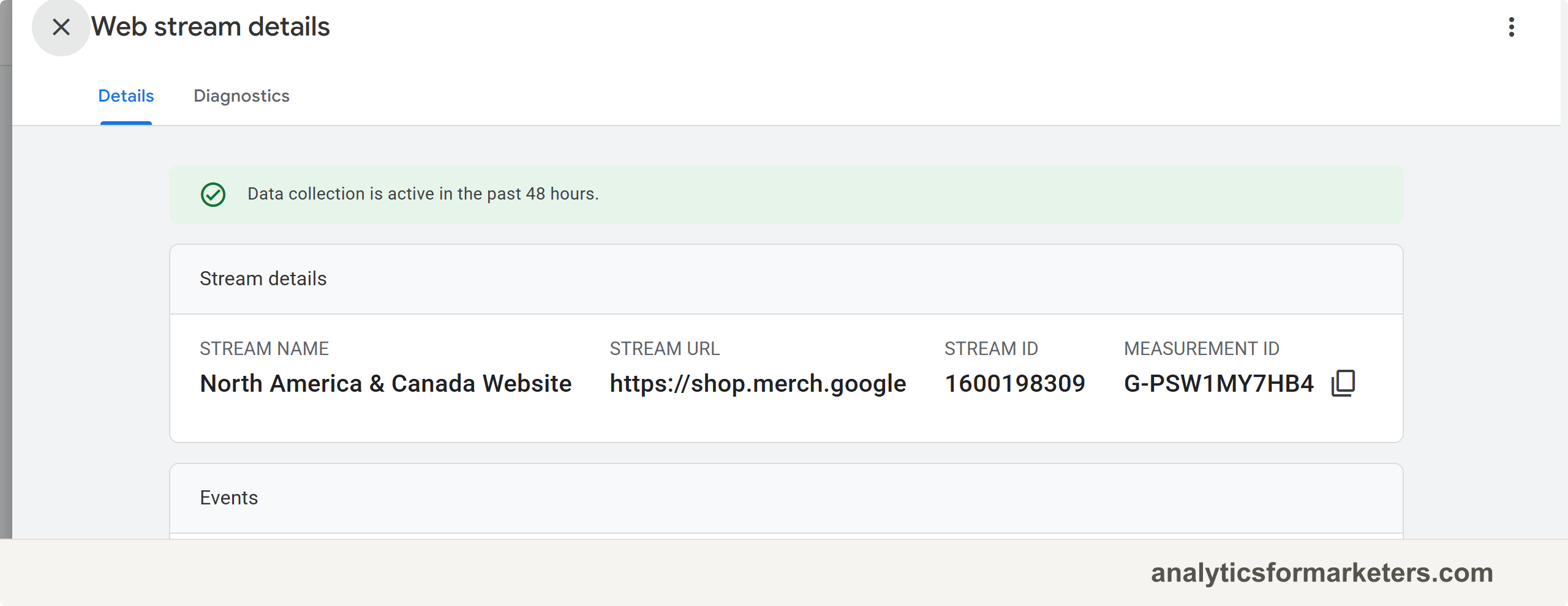
Mismatches happen easily when an agency created a property, when you created a test property while learning, or when a plugin auto-created its own. If the IDs differ, either update the site’s tag or switch to the property that matches; here’s everything about finding your Measurement ID.
Also worth a glance while you’re in Admin: a G- ID belongs to GA4. If your site carries only an old UA- ID, that’s a Universal Analytics leftover, and standard UA properties stopped collecting data in July 2023.
Step 5: Check what’s blocking the tag
If the tag is present, the ID matches, and Realtime still can’t see you, something is stopping the tag from firing or from being attributed to you:
Ad blockers and privacy browsers. On your machine, an ad blocker silently kills GA4. Test in a private window with extensions off, or from your phone on mobile data. (Across your audience this causes undercounting, never a totally empty property.)
Consent banners. If your site runs a cookie consent banner with Google Consent Mode, tracking may be held back until a visitor accepts. Do your Realtime test after clicking accept. If data only appears post-consent, the setup is working as designed; visitors who decline simply won’t appear.
Internal traffic filters. GA4 can be configured to exclude internal IPs. Check Admin > Data collection and modification > Data streams > your stream > Configure tag settings > Show more > Define internal traffic for rules, and check Admin > Data collection and modification > Data filters to see whether an internal filter is active (filters can be in Testing or Active state). If your office IP is filtered, your own visits will never show, while real visitors flow normally; test from mobile data to confirm.
Password-protected or unlaunched sites. Squarespace trial sites, Shopify stores behind the storefront password, and staging environments behind login walls block or never serve the tag to normal visitors. Launch first, then test.
Step 6: Use DebugView for event-level problems
When Realtime sees you but a specific event is missing (a form submission, a purchase), switch to DebugView:
- Go to Admin > Data display > DebugView.
- Start a debug session: open your site through Tag Assistant (tagassistant.google.com), or, if you use Google Tag Manager, click Preview in GTM, which enables debug mode automatically.
- Perform the action on your site and watch the event stream.
Events appear within about a minute with their full parameters, which is how you catch the classic quiet failures: an event named Form_Submit in one place and form_submit in another (event names are case-sensitive), or an event that fires on a click but not on the keyboard path. Once the event streams correctly, remember conversions have one extra requirement: the event must be marked as a key event before it shows up in key event reporting.
The checklist, compressed
- New install? Realtime is the only valid test for 24 to 48 hours.
- Realtime empty? Private window, no ad blocker, live site.
- Tag on the page? View source for
G-orgoogletagmanager.com. - Right property? Site’s ID must match the stream’s Measurement ID.
- Something blocking? Consent banner, internal traffic filter, password page.
- Specific events missing? DebugView, then check key event flags and name spelling.
If every step checks out and standard reports stay empty past 48 hours with Realtime working, reinstall cleanly using the installation guide for your platform; a fresh, single, correctly placed tag beats archaeology on a broken one. Once data flows, the reports walkthrough shows where everything lives, and the GA4 beginner’s guide fills in the concepts behind it.