Squarespace has a built-in Google Analytics integration, so you don't need to touch any code. Copy your GA4 Measurement ID (the code starting with G-), then in Squarespace go to Settings, open Developer tools, click External API keys, paste the ID into the Google Analytics account number field, and click Save. The whole thing takes about 5 minutes, and it works on every Squarespace plan.
Squarespace is one of the easiest platforms to put Google Analytics on. There’s a built-in integration, it works on every plan, and you never touch a line of code: you paste one ID into one field and you’re done.
This is the Squarespace-specific version of our general GA4 installation guide. If your site runs on WordPress or Shopify, we have dedicated guides for those too.
You’ll need a GA4 property and its Measurement ID, the code starting with G-. Here’s where to find your Measurement ID if you’re not sure. If you don’t have a GA4 property yet, the GA4 beginner’s guide walks through creating one in a few minutes.
Method 1: the built-in integration (recommended)
This is the supported, no-code path, and for most Squarespace sites it’s the only one you need.
Copy your GA4 Measurement ID
In Google Analytics, go to Admin > Data streams and click your web data stream. Your Measurement ID sits in the top-right of the stream details, formatted G-XXXXXXXXXX. Click the copy icon next to it.
G-ABC123XYZ9Open External API keys in Squarespace
In your Squarespace dashboard, click Settings, then open Developer tools and click External API keys.
Settings Developer tools External API keysOn older Squarespace 7.0 sites, the same panel lives under Settings > Advanced > External API Keys.
You should see: a panel with a Google Analytics account number field.
Paste your Measurement ID and save
Paste your G- ID into the Google Analytics account number field and click Save.
That’s the installation. Squarespace now loads the GA4 tag on every page of your site, including any blog pages and store pages.
Verify it's working
Open your website in a new tab and click through a couple of pages. Then, in Google Analytics, go to Reports > Realtime.
You should see: at least one active user (that’s you) within a minute or so.
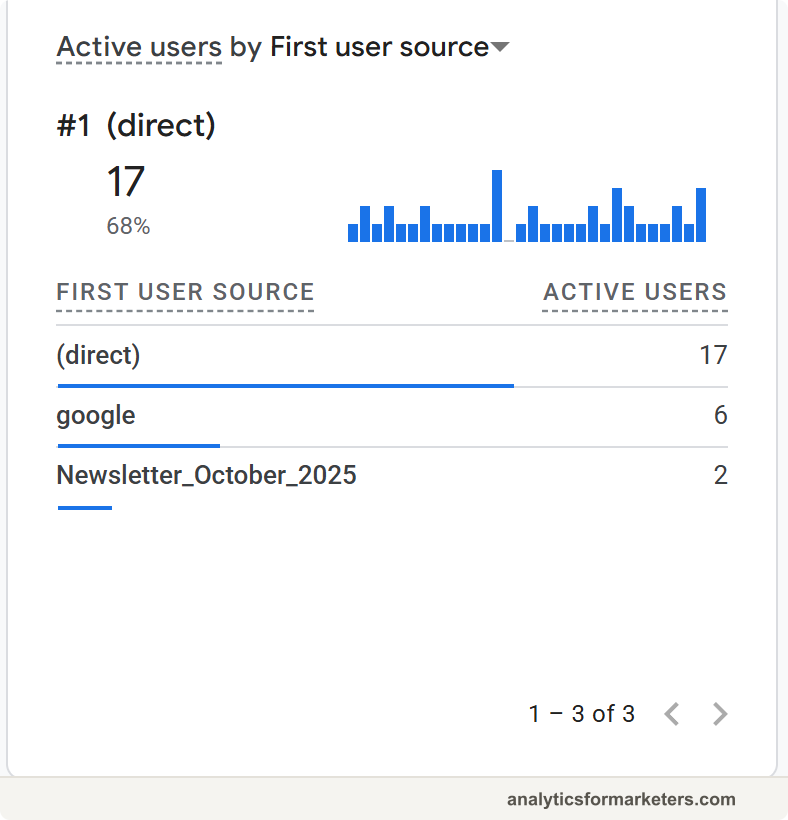
If nothing shows after a few minutes: double-check the ID for typos and stray spaces, make sure you saved, and try in a private browser window. Ad blockers and content blockers stop GA4 from firing, so a browser without extensions gives you a clean test. Still empty? Work through the full GA4 not showing data checklist.
Realtime is instant, but the main reports need 24 to 48 hours before data starts appearing. If Realtime saw your test visit, the install is done; the rest is waiting.
Method 2: Code Injection (for GTM or more control)
The second path is pasting tracking code into Squarespace’s Code Injection panel. You’d choose this when:
- You want to run Google Tag Manager so all your tracking (GA4, ad pixels, click tracking) lives in one container. We have a dedicated guide to installing GTM on Squarespace.
- You need a customized GA4 snippet rather than Squarespace’s default tag.
The catch: Code Injection is a premium feature. It’s included on the current Core, Plus, and Advanced plans and the legacy Business and Commerce plans. The current entry-level Basic plan and the legacy Personal plan don’t have it, and for them Method 1 is the way.
To add GA4 by code:
- Click Website, scroll to the bottom of the Pages panel, and open Code Injection under Website Tools (labeled Custom Code on some sites; older dashboards show Settings > Advanced > Code Injection).
- Paste the gtag.js snippet below into the Header box, swapping in your own Measurement ID (or copy the whole thing from GA4 under Admin > Data streams > your stream > View tag instructions > Install manually).
- Click Save.
<!-- Google tag (gtag.js) -->
<script async src="https://www.googletagmanager.com/gtag/js?id=G-XXXXXXXXXX"></script>
<script>
window.dataLayer = window.dataLayer || [];
function gtag(){dataLayer.push(arguments);}
gtag('js', new Date());
gtag('config', 'G-XXXXXXXXXX');
</script>If GA4 loads through Code Injection or GTM, leave the Google Analytics account number field in External API keys empty. Running both installs the tag twice, and every visit and page view counts double. Doubled data is worse than no data, because you won’t notice for weeks.
What gets tracked automatically
Once installed, GA4’s Enhanced Measurement collects a useful baseline without any extra setup:
- Page views as visitors move around your site
- Scrolls when someone reaches the bottom 10 percent of a page
- Outbound clicks to other websites
- File downloads for PDFs and similar files
- Site search, if your Squarespace site uses search with standard URL parameters
What it can’t do well: tell you which button someone clicked, or give you reliable purchase data. Enhanced Measurement does include form interaction events (form_start and form_submit), but they’re notoriously unreliable on forms like Squarespace’s that submit without loading a new page, so don’t build reporting on them without testing. Anything you actually want to count needs a more deliberate setup; our guide to setting up events in GA4 is the next step when you’re ready.
Squarespace Analytics vs Google Analytics
Squarespace has its own analytics under Analytics in the dashboard, and after installing GA4 you’ll have both. They will disagree with each other, and that’s normal: Squarespace counts on the server side with its own definitions, GA4 counts in the browser where ad blockers and consent banners take a bite, and their session rules differ.
Keep both, but give them different jobs. Squarespace Analytics is quick and friendly for “how’s traffic this week.” GA4 answers the marketing questions Squarespace can’t: which channels drive visitors who stick around, what your campaigns convert, and how your content performs over time. Our walkthrough of GA4’s reports shows where those answers live.
Next steps
Installation is the boring prerequisite. The payoff comes from what you set up next:
- Mark what matters as key events, like newsletter signups or form submissions: how to set up key events.
- Tag your campaign links so email and social traffic gets credited properly: the UTM parameters guide.
- Check the reports that earn their keep instead of drowning in menus: GA4 reports explained.