Wix has a built-in Google Analytics integration, so there's no code to paste. In your Wix dashboard, go to Settings, open Marketing Integrations, find the Google Tag box (Wix merged Google Analytics into it), click Connect, and add your GA4 Measurement ID (the code starting with G-) as your Google tag ID. Two requirements: your site must be on a paid Premium plan and have a connected custom domain. Free Wix sites can't install third-party tracking.
Wix makes GA4 installation genuinely easy: there’s a built-in integration, no code, and the whole thing takes about 5 minutes. The catch comes before the first step, because Wix gates tracking behind two requirements that stop a lot of people.
This is the Wix-specific version of our general GA4 installation guide. On WordPress, Shopify, or Squarespace? We have dedicated guides for each.
The two requirements
Before anything else, check that your site clears both bars:
- A paid Premium plan. Free Wix sites can’t run third-party tracking codes at all.
- A connected custom domain. The integration doesn’t work on a free
username.wixsite.comaddress; your site needs to live on its own domain.
If you’re missing either, that’s the actual first step. There’s no workaround that gets GA4 onto a free Wix site.
You’ll need a GA4 property and its Measurement ID, the code starting with G-. Here’s where to find your Measurement ID. No GA4 property yet? The GA4 beginner’s guide covers creating one, then come back here.
Connect GA4 to Wix
Copy your Measurement ID
In Google Analytics, go to Admin > Data streams and click your web data stream. Your Measurement ID is in the top-right corner, formatted G-XXXXXXXXXX. Click the copy icon.
G-ABC123XYZ9Open Marketing Integrations
Go to your Wix dashboard for the site (this is the admin area at wix.com, not the drag-and-drop editor). In the left menu, click Settings, scroll to the Advanced section, and click Marketing Integrations.
Wix dashboard Settings Marketing IntegrationsDepending on your dashboard version, Marketing Integrations may sit under Marketing & SEO in the left menu instead. Both routes land in the same place.
You should see: a grid of integration boxes, including Google Tag, Google Tag Manager, Meta pixel, and others.
Connect your Google tag
Wix merged its Google Analytics integration into a single Google Tag box, which accepts your GA4 Measurement ID. In the Google Tag box, click Connect, then Add Google Tag, then Add Google Tag ID. Paste your G- Measurement ID and click Save.
Wix now adds the GA4 tag to every page of your site, including new pages you create later.
You should see: the Google Tag box showing as connected, with your tag ID listed.
Verify it's working
Open your website in a new tab (use a private window so ad blockers and cached pages don’t interfere) and click through a few pages. Then, in GA4, go to Reports > Realtime.
You should see: at least one active user within a minute or so.
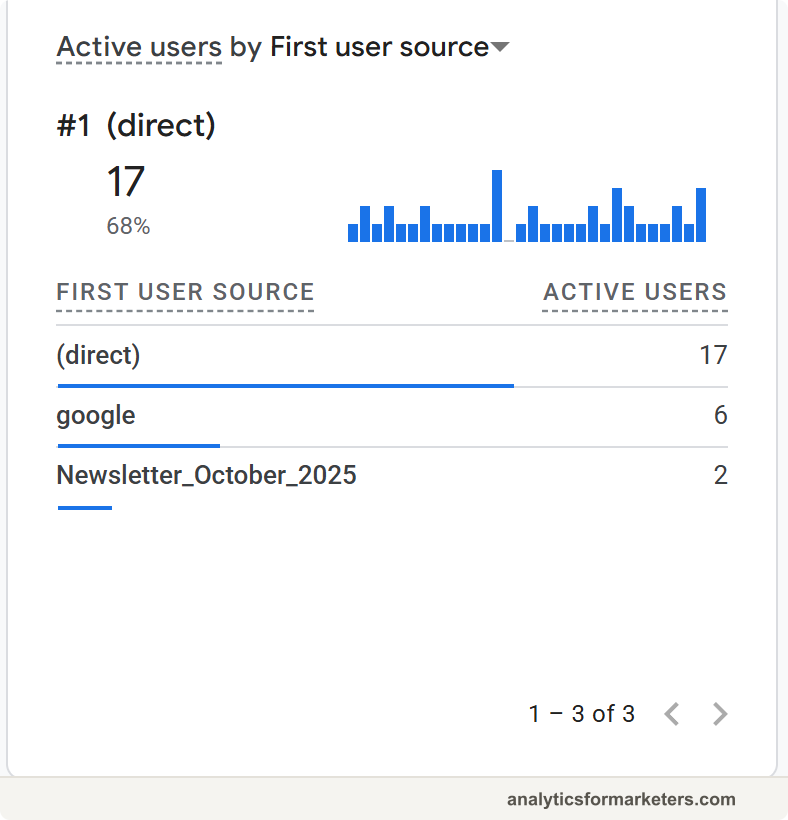
Nothing showing? Confirm your plan and domain meet the two requirements, re-check the ID for typos, and make sure you visited the live site, not the editor preview. Standard reports take 24 to 48 hours to populate; Realtime is the only instant check.
What gets tracked automatically
With the tag in place, GA4’s Enhanced Measurement gives you a baseline without extra setup: page views, scrolls to the bottom of pages, outbound link clicks, file downloads, and site search where Wix uses standard URL parameters. For Wix Stores sites, Wix also sends e-commerce events through the integration; test an order before trusting the revenue numbers, and keep Wix’s own order reports as the source of truth for money.
What you don’t get automatically: which specific buttons people click, or form submissions as reliable, distinct events. Those come from deliberate setups later; the GA4 events guide covers your options when you’re ready.
Wix Analytics vs Google Analytics
Every Wix site also has Wix’s own analytics under Analytics in the dashboard, and the two will disagree: Wix measures on its side, GA4 measures in the browser where ad blockers and consent choices take a cut, and they define sessions differently.
Keep both, with different jobs. Wix Analytics answers “how’s the site doing this week” with zero setup. GA4 answers the marketing questions: which channels bring visitors who stick around, what your campaigns actually convert, and how content performs over time. Our tour of GA4’s reports shows where to find each answer.
Next steps
- Mark your important actions as key events, like contact form thank-you pages or purchases: key events setup.
- Tag your campaign links so email and social traffic gets credited correctly: UTM parameters guide.
- Decide what you’re measuring and why before building any dashboards: how to build a marketing measurement plan.